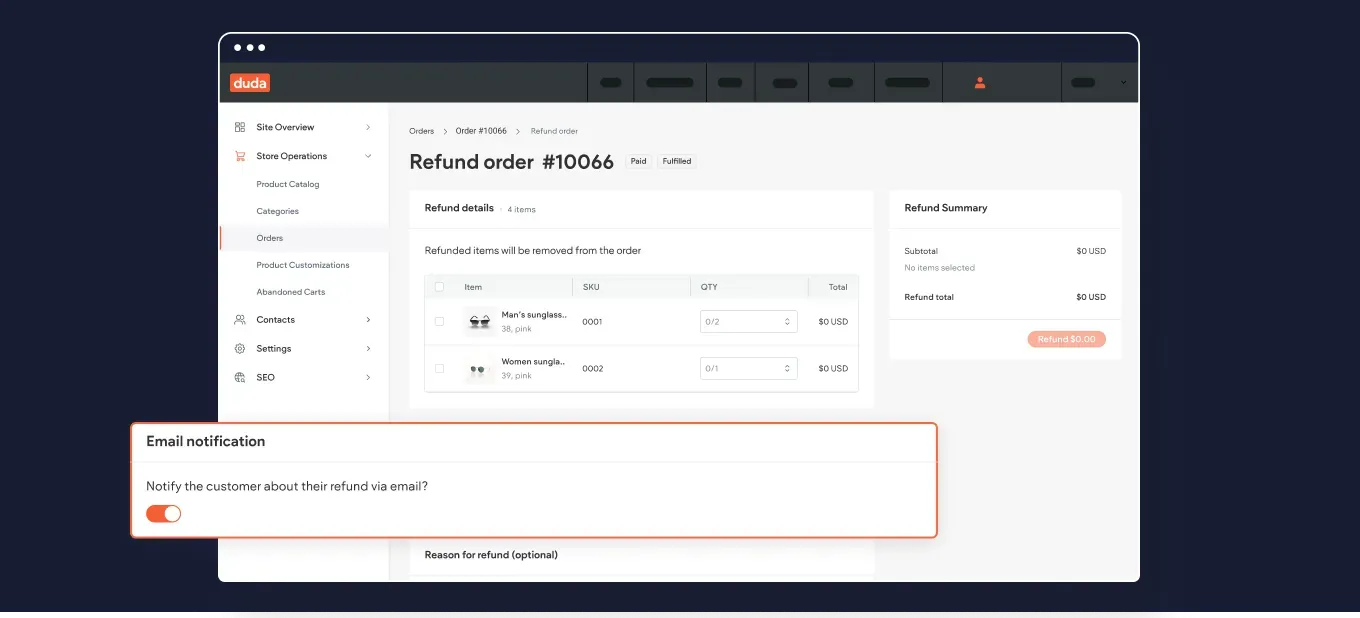
Notify store customers about their refunded order
Edit text faster with quick AI Content Assistant actions
We’ve added new quick edit suggestions right into the AI Content Assistant dialog box, to allow you to shorten, lengthen, and improve text better and faster.
To give an example, if your suggested text is longer than expected, you can easily ask the Assistant to cut it short right here at the click of a button, without needing to re-select the text and open Assistant's text menu all over again.
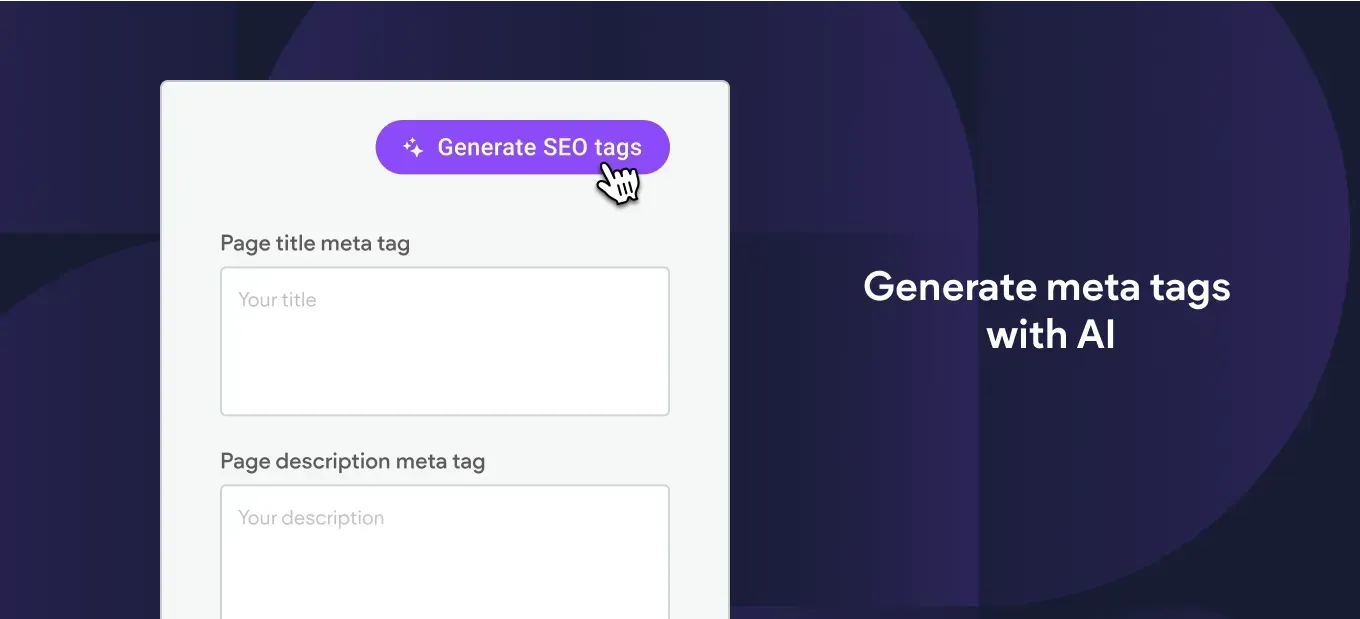
An added bonus: these actions are also available when generating SEO meta tags for individual fields (only title or description).
New! Change workspaces to easily work on all your accounts
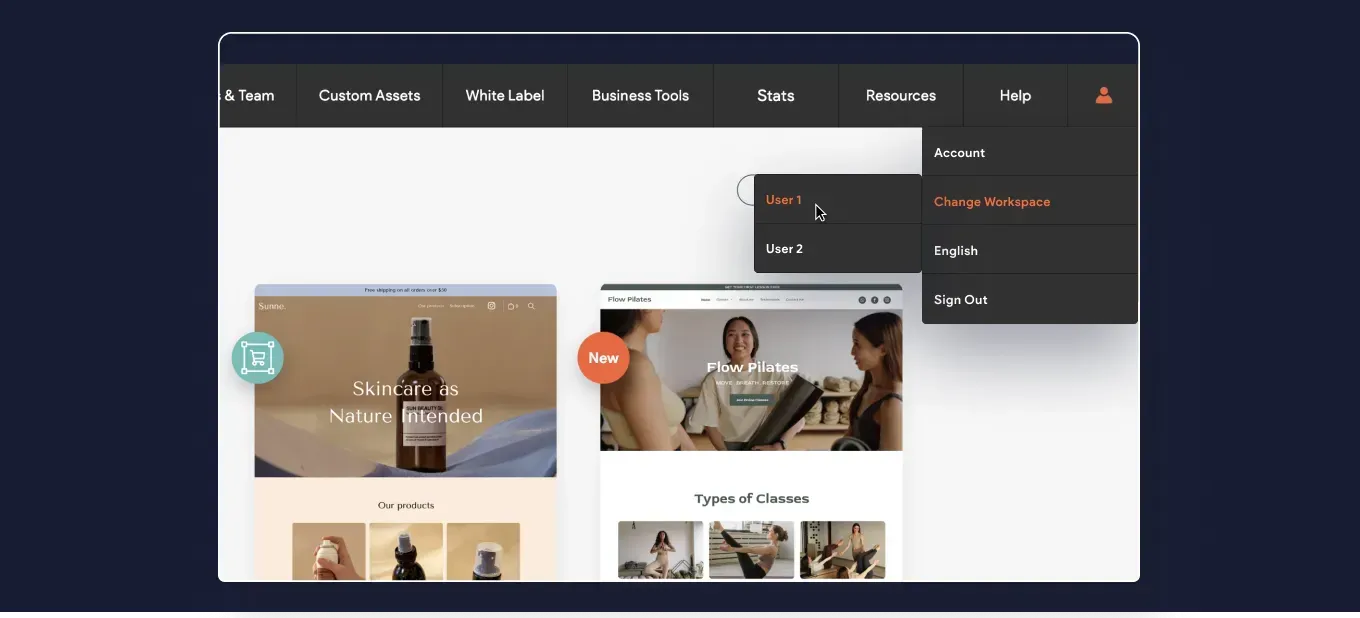
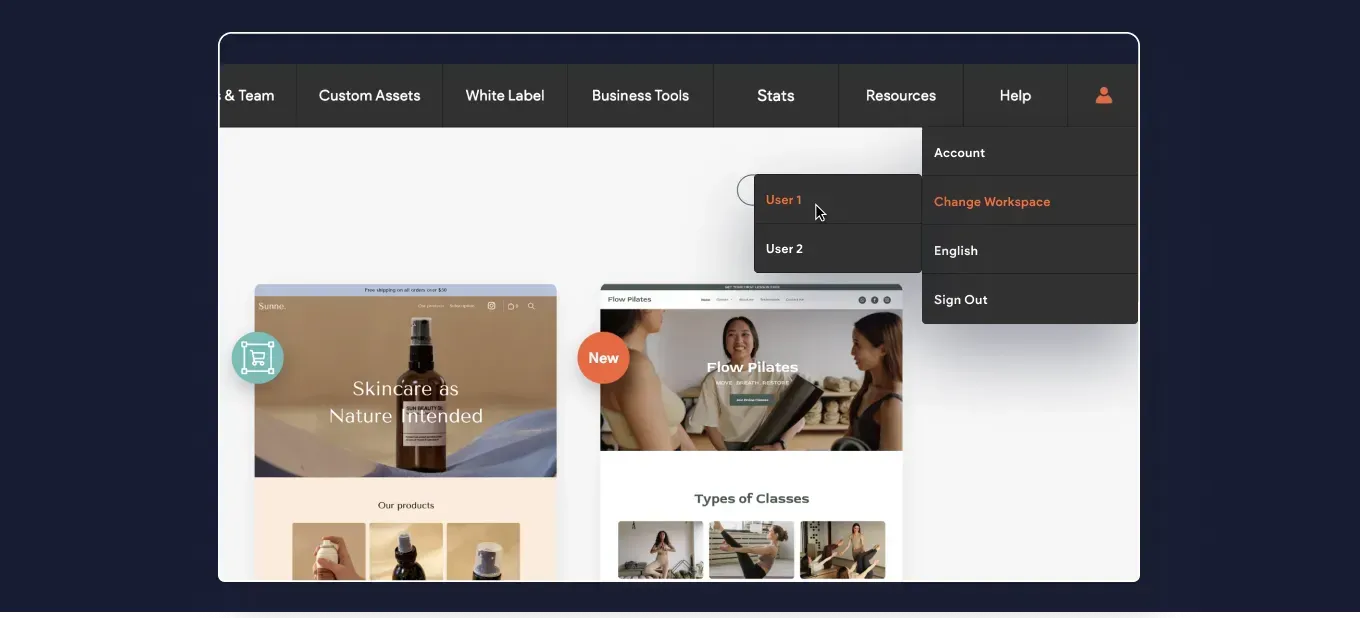
We’ve added the option to quickly log in to other workspaces you might need to when working on multiple accounts.
Your Duda profile menu now includes the option to Change Workspace. Opting for this option will show you the available accounts, and clicking each of these will put you through the login to the other account.
More code customization power with your Dynamic Pages
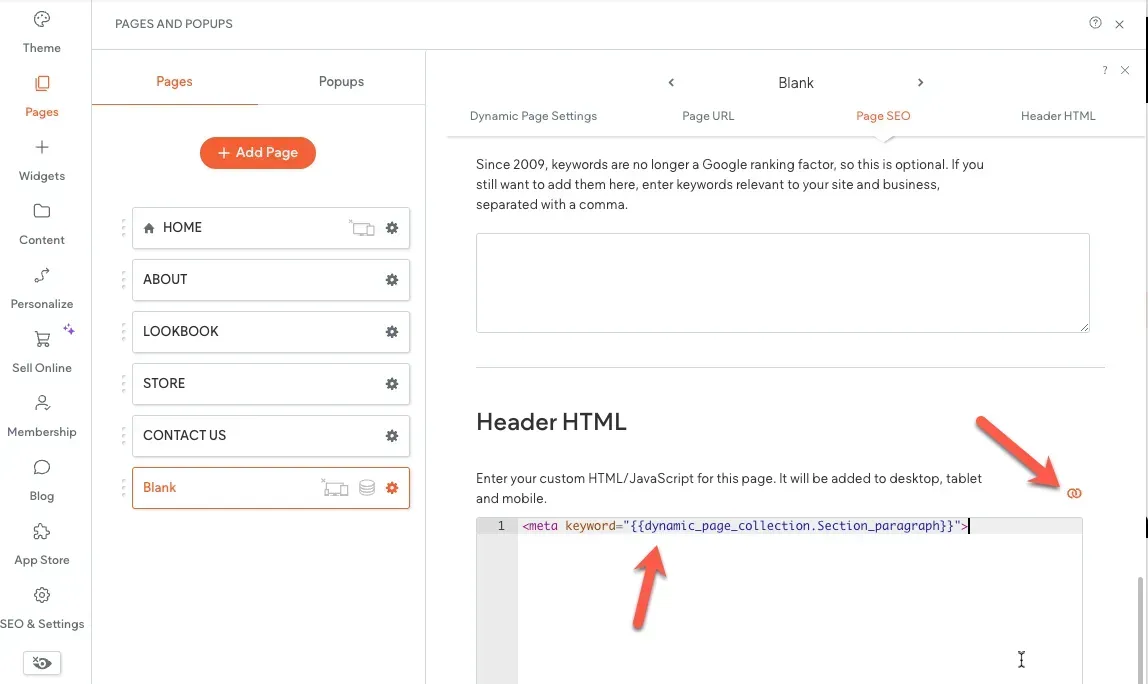
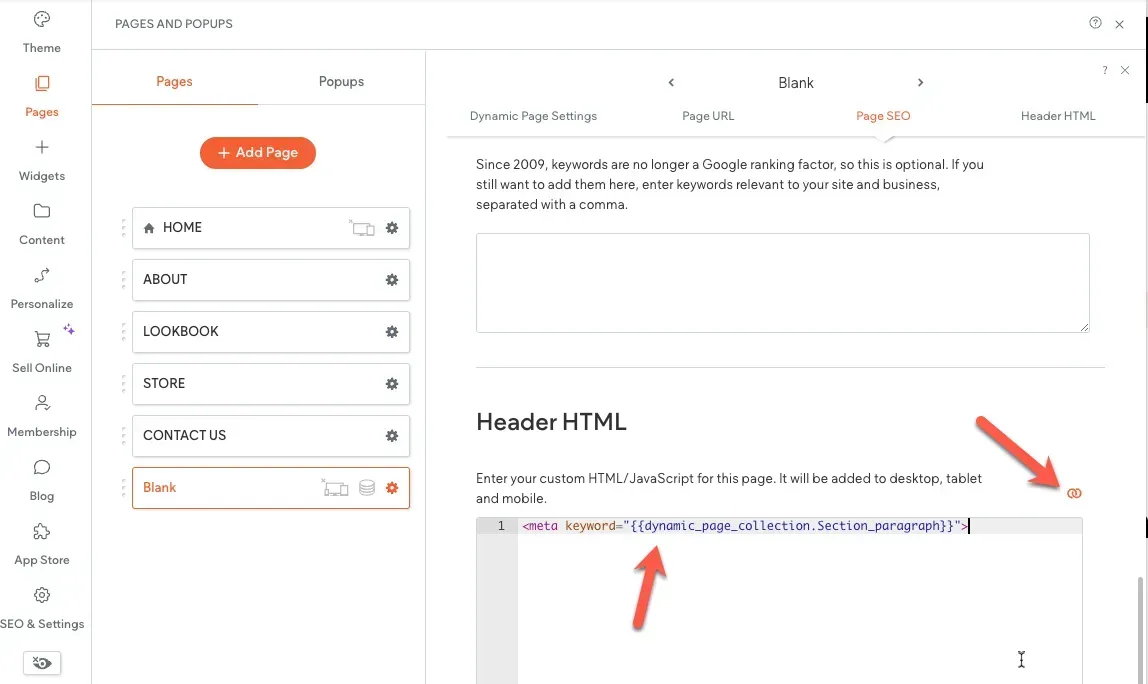
We've added the ability to add inline binding to a page's head HTML. Until now you could connect a Dynamic Page's meta title and meta description to the site’s internal collection, to dynamically show metadata for each page item.
So what’s new? You can now add other metadata, and insert custom code to the Dynamic Page's head HTML. Another option that’s now possible is to connect Content Library fields to the <head> section of regular (non-Dynamic) site pages.
That's it for this month's Wrap Up. We hope you find these useful. Got an idea or a feature request? Stop by our Idea Board and post it.
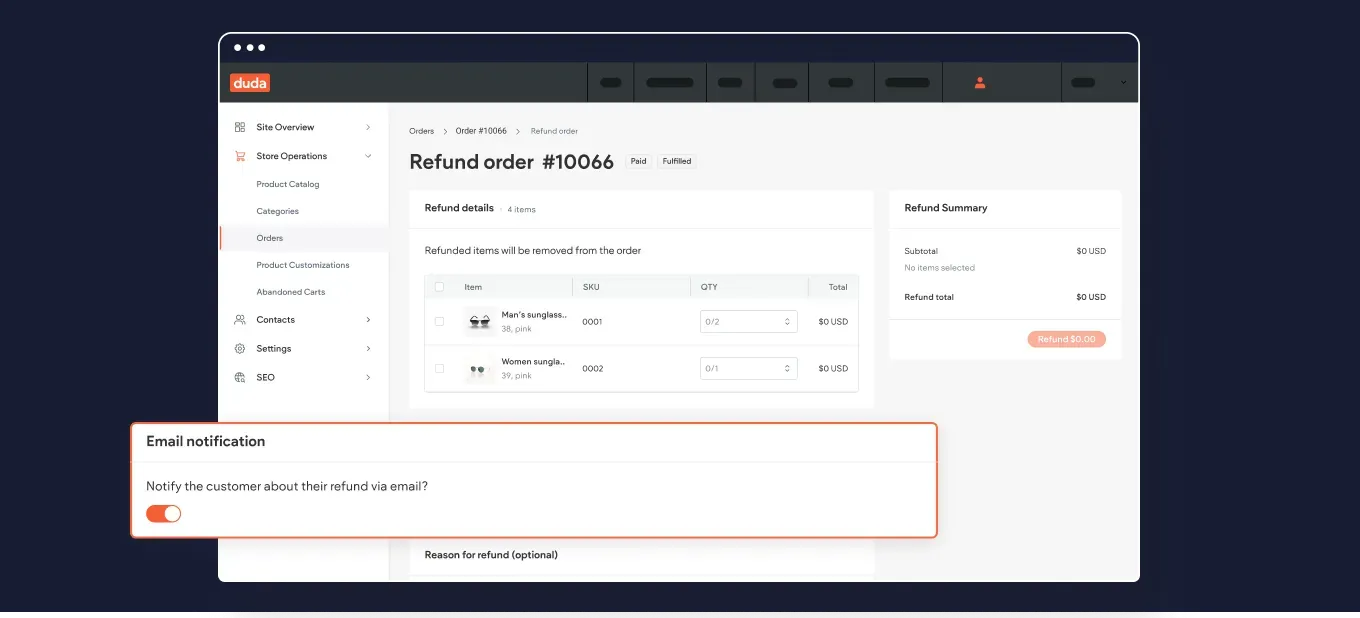
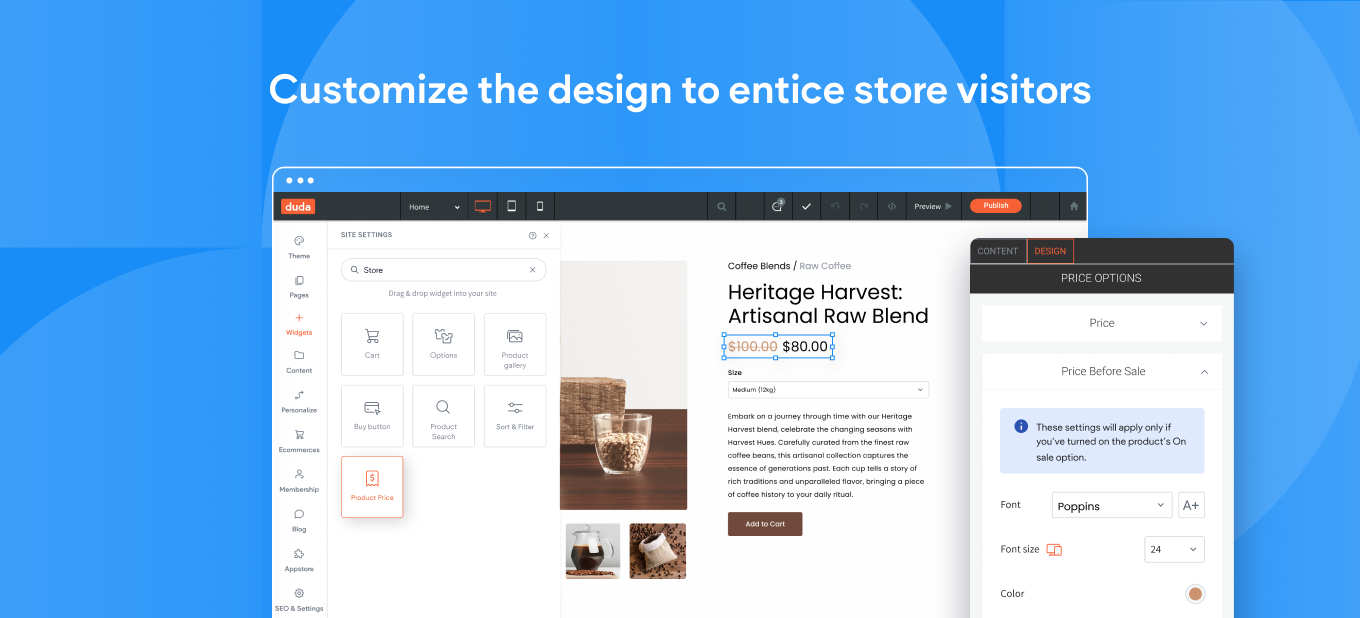
Notify store customers about their refunded order
Edit text faster with quick AI Content Assistant actions
We’ve added new quick edit suggestions right into the AI Content Assistant dialog box, to allow you to shorten, lengthen, and improve text better and faster.
To give an example, if your suggested text is longer than expected, you can easily ask the Assistant to cut it short right here at the click of a button, without needing to re-select the text and open Assistant's text menu all over again.
An added bonus: these actions are also available when generating SEO meta tags for individual fields (only title or description).
New! Change workspaces to easily work on all your accounts
We’ve added the option to quickly log in to other workspaces you might need to when working on multiple accounts.
Your Duda profile menu now includes the option to Change Workspace. Opting for this option will show you the available accounts, and clicking each of these will put you through the login to the other account.
More code customization power with your Dynamic Pages
We've added the ability to add inline binding to a page's head HTML. Until now you could connect a Dynamic Page's meta title and meta description to the site’s internal collection, to dynamically show metadata for each page item.
So what’s new? You can now add other metadata, and insert custom code to the Dynamic Page's head HTML. Another option that’s now possible is to connect Content Library fields to the <head> section of regular (non-Dynamic) site pages.
That's it for this month's Wrap Up. We hope you find these useful. Got an idea or a feature request? Stop by our Idea Board and post it.
New Title
New Title
New Title
New Title
New Title