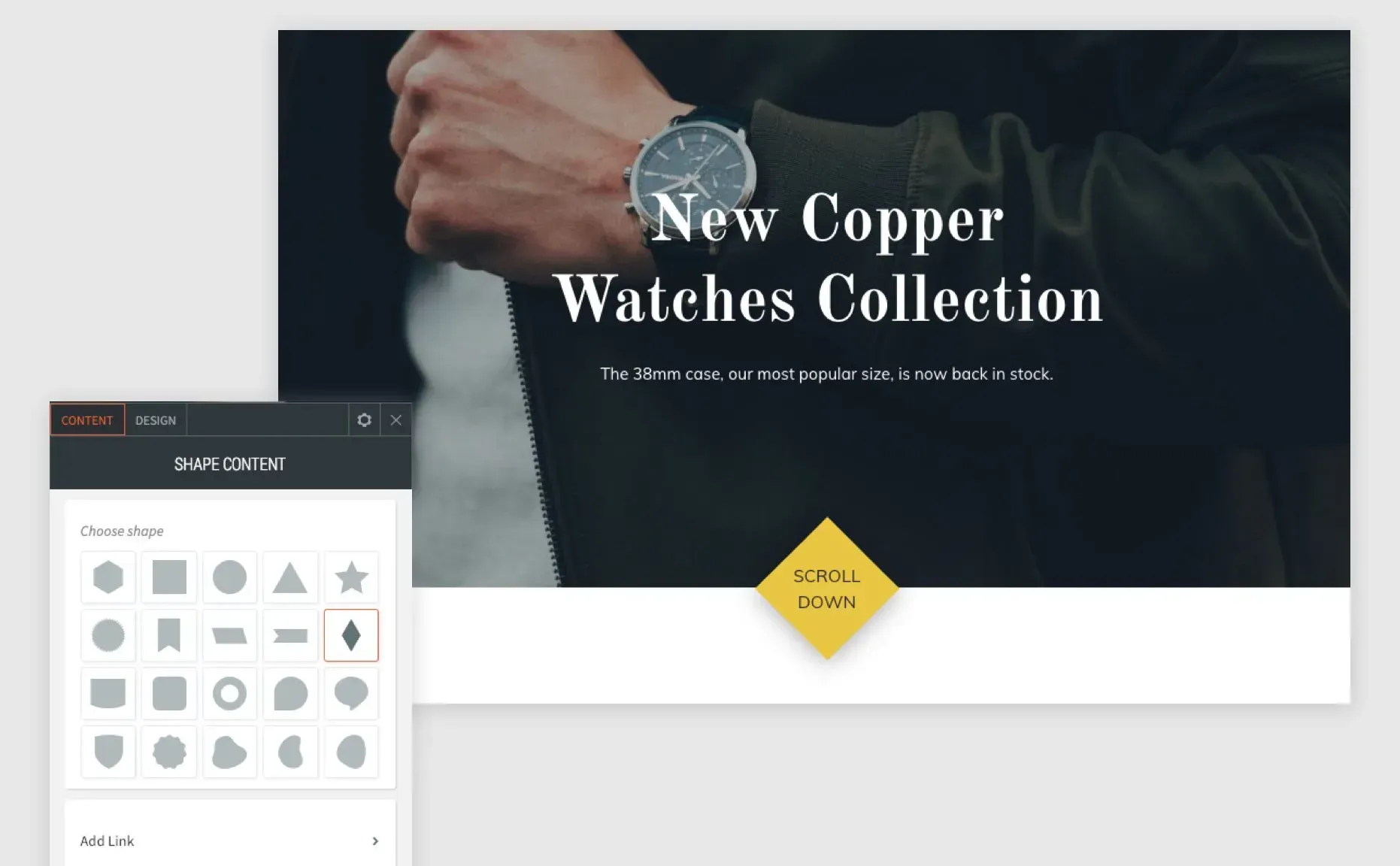
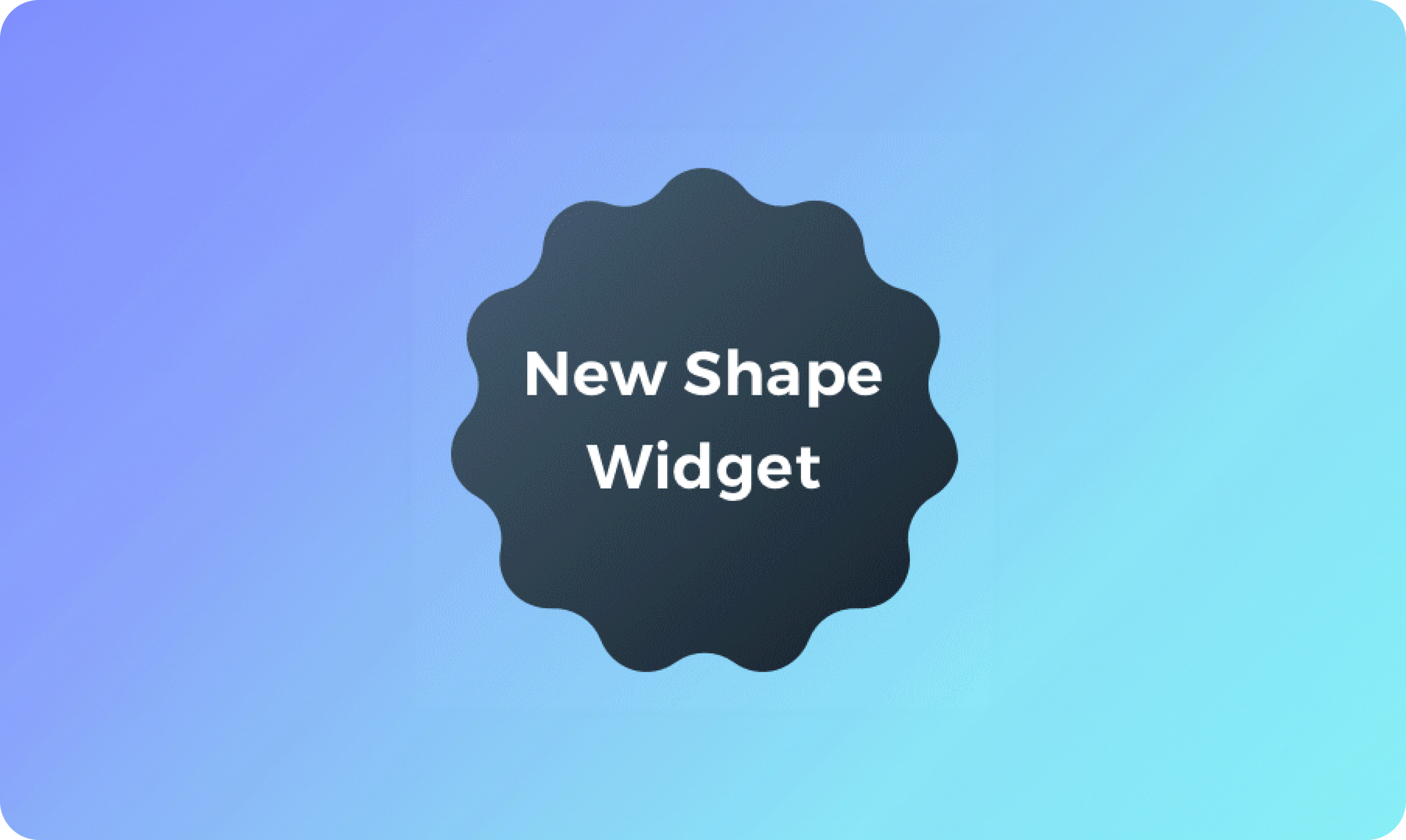
The new Shape widget enables you to add 20 different types of shapes to your site. Use it to add eye-catching banners, tags, awards, and more. You can control the size of the shape, add an image or color background, and add a shadow and text.


See examples (with instructions) of striking ways you can use the Shape widget to create interest on your site and make information, promotions, images and calls-to-action really pop.


Great ideas for adding the Shape widget to your sites


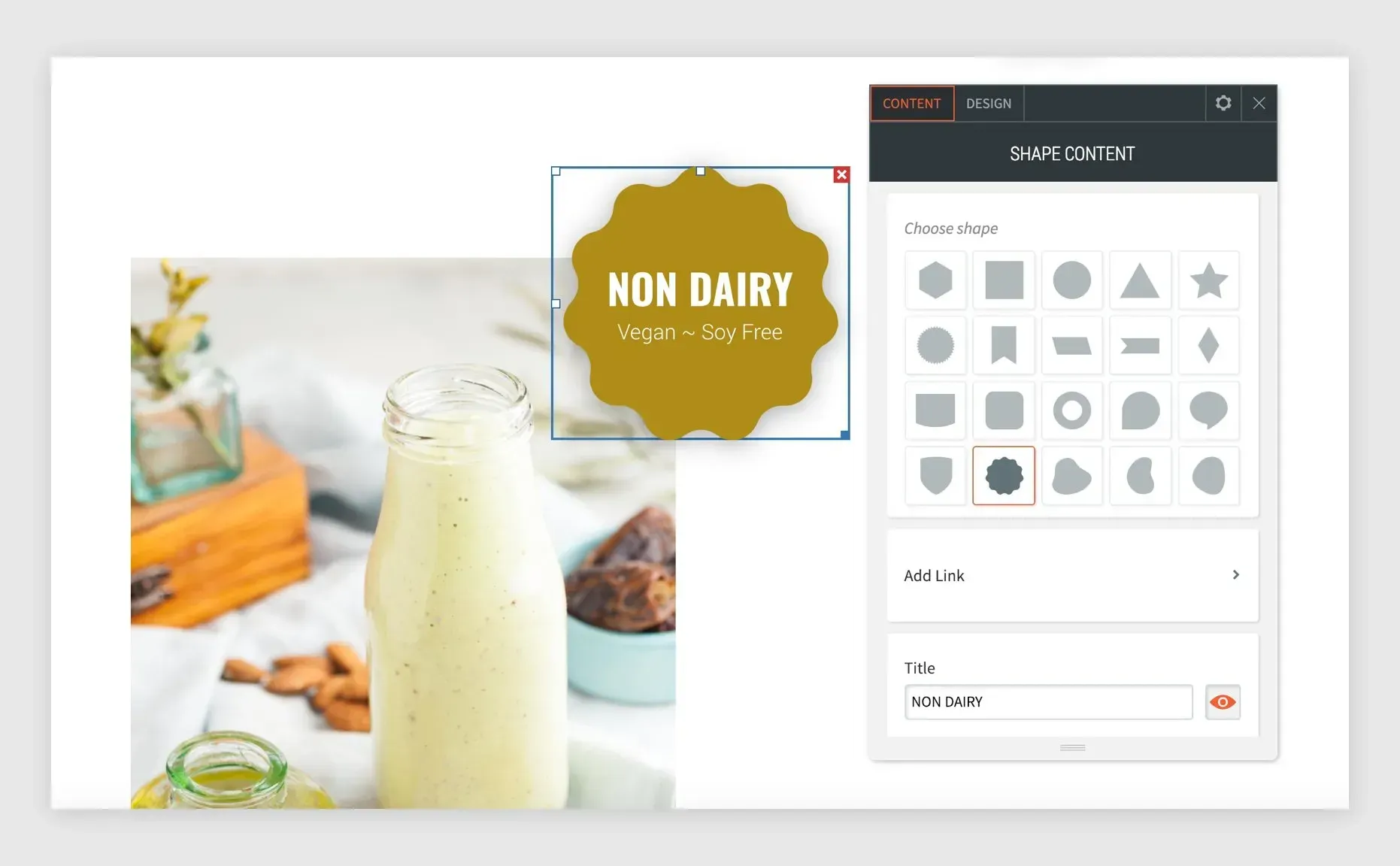
Highlight Information

  1. Choose the round wavy shape and add a title and short description.
  2. Select colors for the shape and texts.
  3. To position the shape on the top corner of the image, use a negative left margin (spacing > margin > -50px left & top margin).


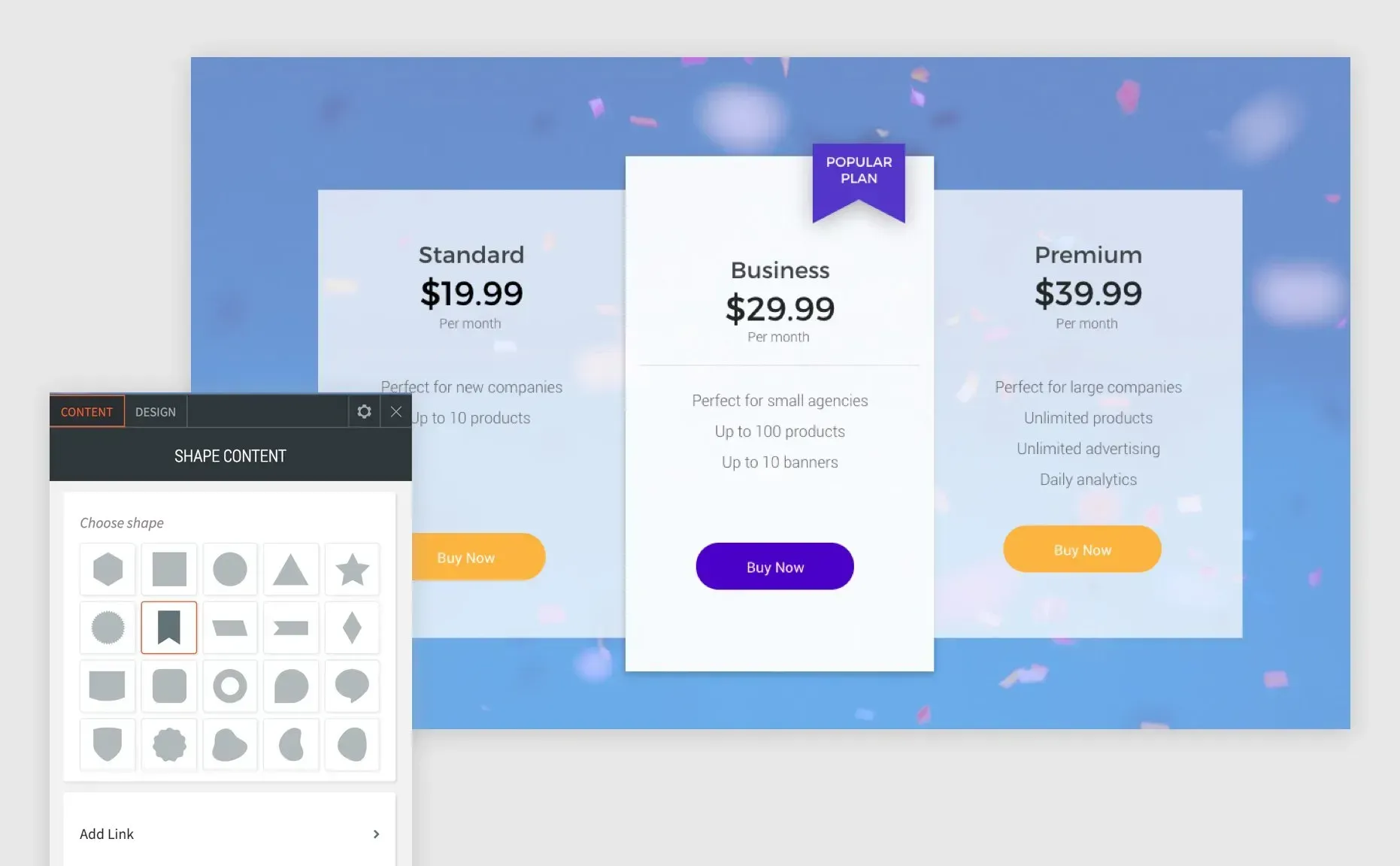
Highlight a specific plan or service

1. Choose the flag shape and add a title and/or short description.

2. Toggle off “Keep proportion” so you can adjust only the width.

3. Select colors for the shape and texts.

4. To position the shape so it overlaps the top of a column, use a negative top margin (spacing > margin > -30px top margin).


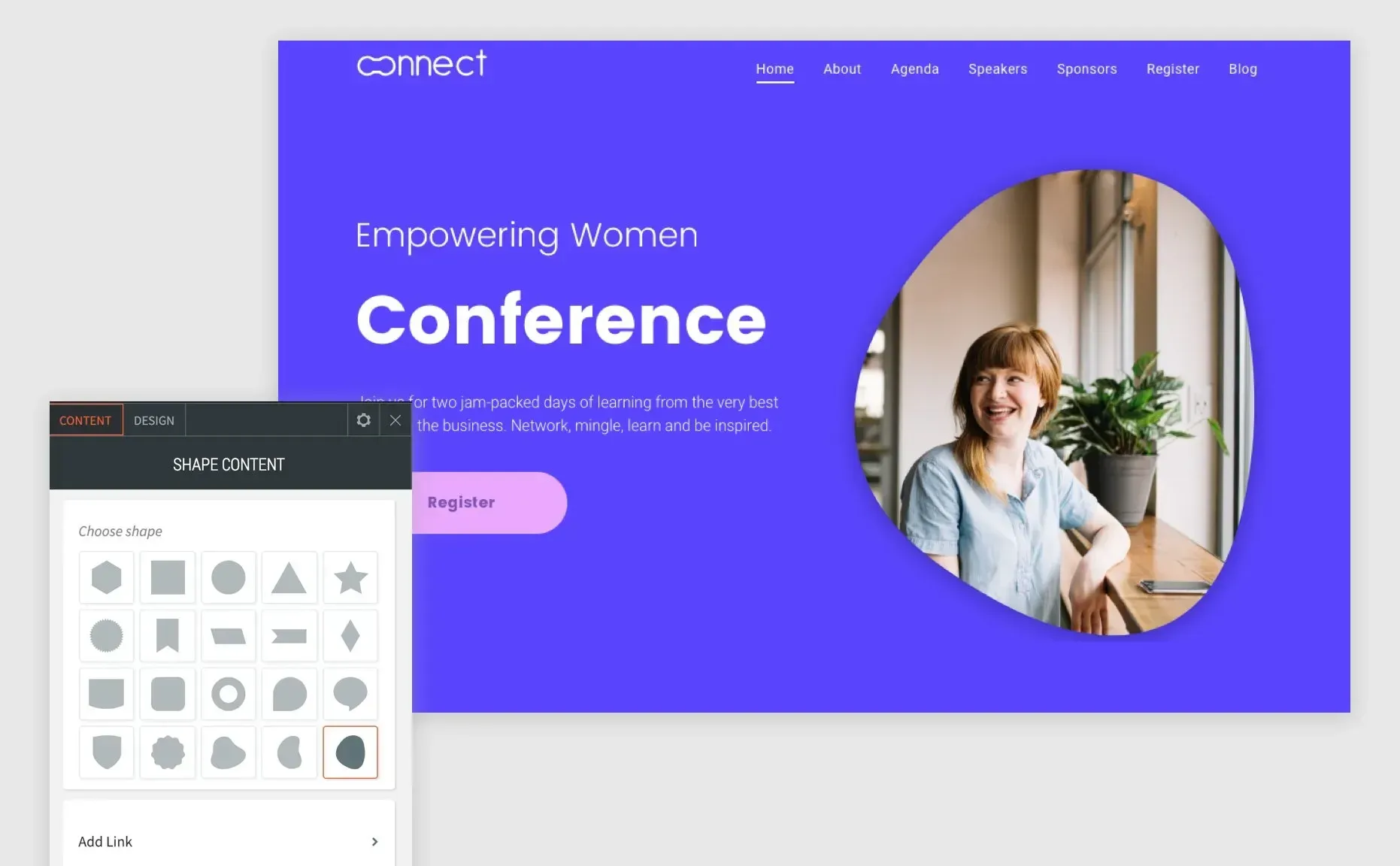
Create a trendy eye-catching shape in the header

1. Create a row with two columns.

2. Choose an amorphic shape and add it to the right-side column.

3. Make the shape as big as the column.

4. In the design tab select the layout with the background image and replace the image with the one you want.


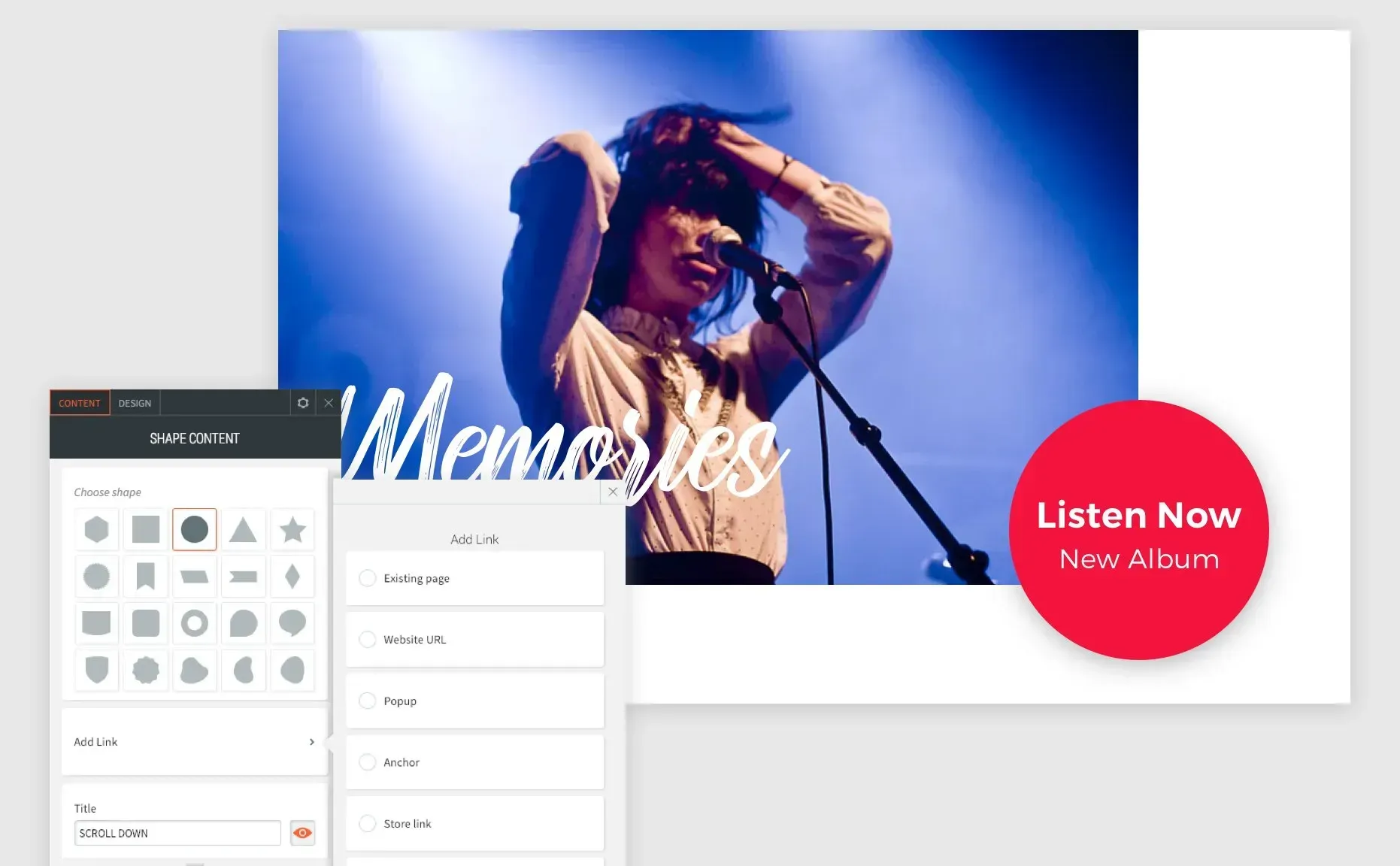
Use as a button by adding a link and hover effect

1. Choose the circle shape and add a title and description.

2. Select colors for the shape and texts.

3. To position the shape on the corner of an image, use a negative margin on the left side of the shape (spacing > margin > -50px left & top margin).


Create an eye-catching scroll button

1. Choose the diamond shape and add a title.

2. Toggle off “Keep proportion” so you can adjust only the width.

3. Select colors for the shape and texts.

4. To position the shape on top of an image, use a negative top margin (spacing > margin > -50px top margin).


Another quick & easy tool for making sites that convert


The Shape widget is another tool designed to make it easier and quicker to design unique sites for your visitors. By turning off the "Keep proportion" toggle, you have even more shapes at your disposal, because you can adjust the width/heigh without keeping the ratio.

February 18, 2019
Roni Landau

 • 

New Shape Widget - Cool Customizable Shapes for Your Sites

Stay in the Loop with Duda Updates

Sign up to get feature releases, tools, and more to your inbox.

Latest product updates

Split-screen UI mockup of a login form and a document editor with a pink note card and comment field
By Tal Levi August 31, 2026
Add built-in user authentication to your Duda Vibe projects by simply asking for it...
Canva design editor showing a beach-themed layout with a selected text box on the canvas.
By Ofri Baram August 26, 2026
Create, edit, and manage almost anything on your site, including custom widgets, from one Copilot chat - in the editor.
Blurred discount setup form with fields, dropdowns, and a blue action button on a white dialog.
By Rim Elfahem August 24, 2026
Updates to help your eComm clients increase sales, streamline store management, and deliver a better shopping experience.