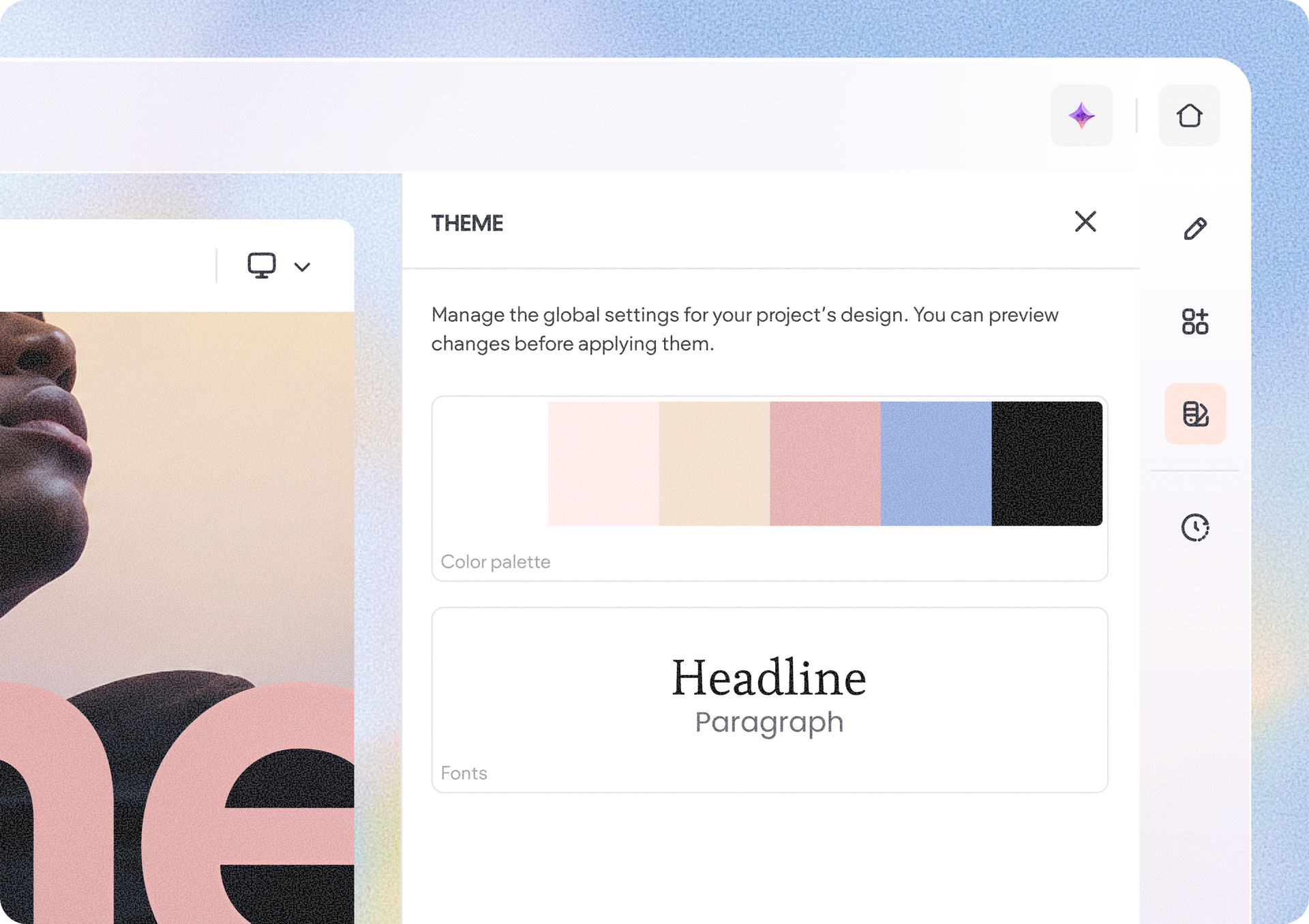
You can now edit your Vibe project's theme colors and fonts directly, without asking Copilot to make those updates for you. It's an easier way to experiment with a different look, fine-tune a project to match a client's brand, or make quick design adjustments. And because these changes are applied directly to the code, they won't use up your AI credits either.

Find the right colors

Simply click Theme in the right side panel and select Color palette. From there, you can browse curated palettes and preview them on your project, or set the color for each element individually under Color uses.

Pair the perfect fonts

Select Text to set your Display font for headings and your Sans font for body text. Pick each one yourself, or choose a preset font pairing to get a balanced look in one click.

Every change previews on your project, and nothing is applied until you click Apply Changes. Want to compare with your current look? Just click Stop testing or Exit preview.

We hope these controls make it quicker to get every project looking exactly right.

September 18, 2026

 • 

Tal Levi
Edit Your Vibe Project's Theme Colors and Fonts Directly

Stay in the Loop with Duda Updates

Sign up to get feature releases, tools, and more to your inbox.

Latest product updates

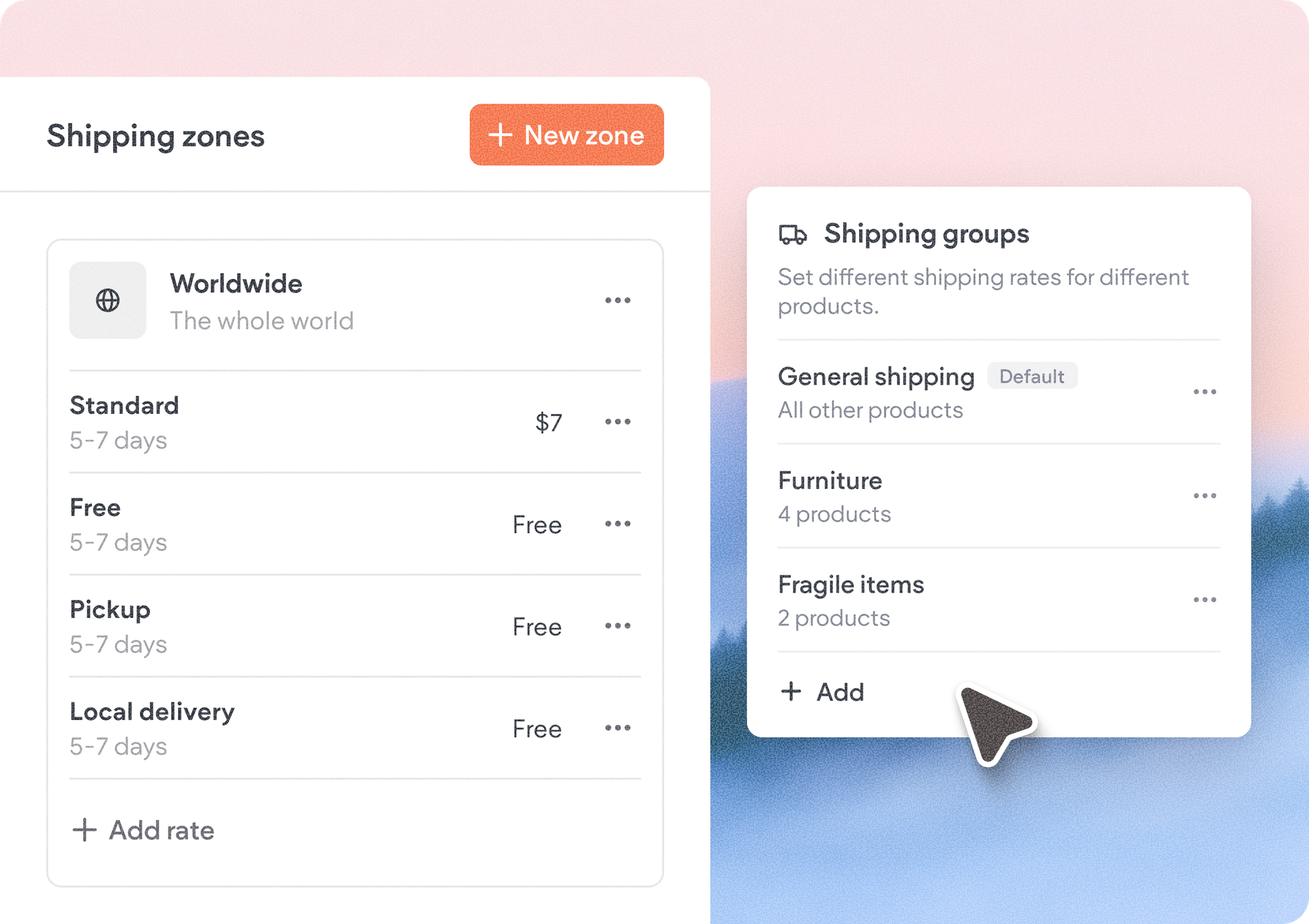
Shipping settings dashboard showing a list of delivery zones and an open shipping options menu over a pastel background.
By Rim Elfahem • November 24, 2026
Discover a new way to set different shipping methods and rates for different products within the same store.
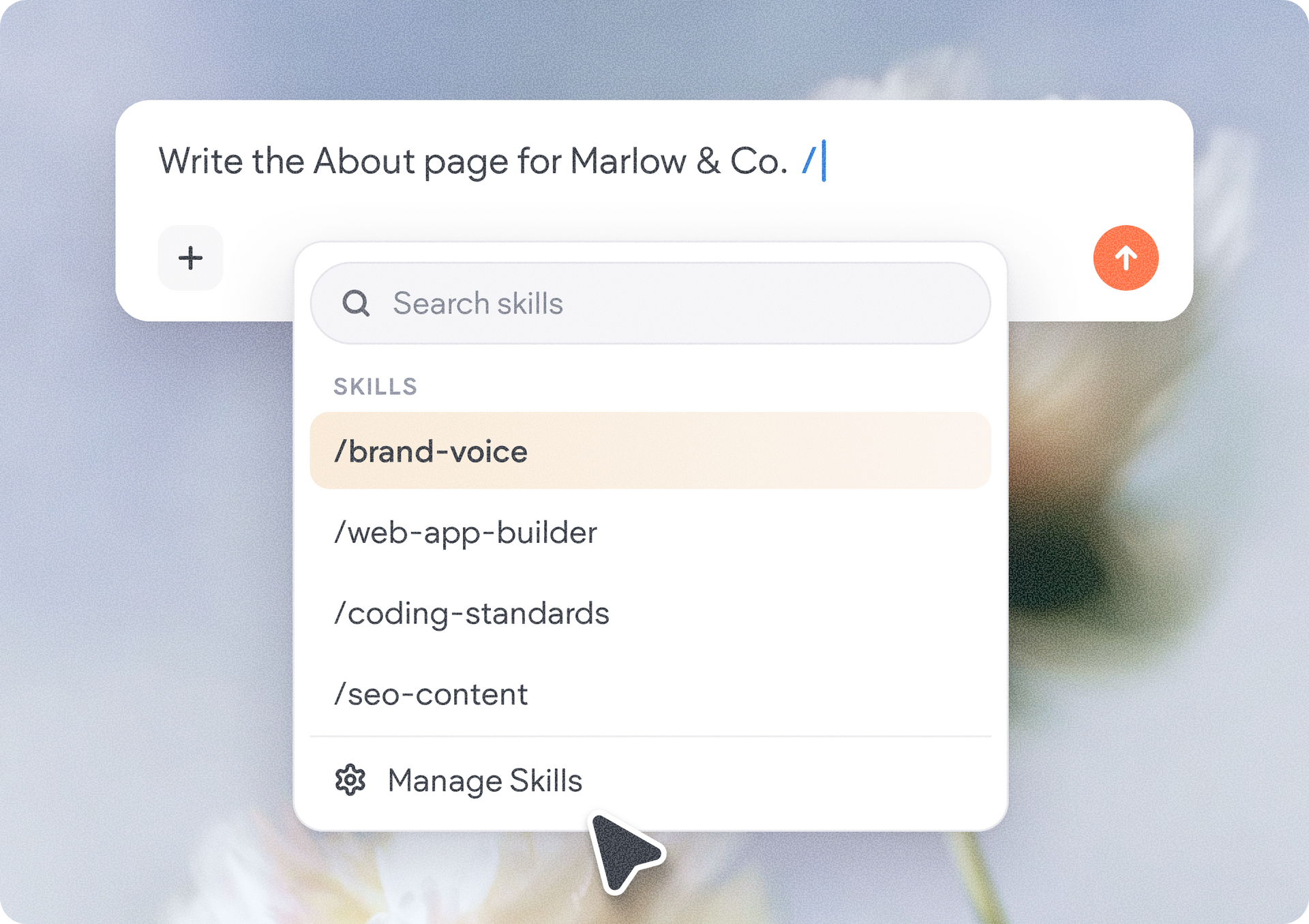
Text editor with a slash-command menu listing blocks like brand voice, web-app-builder, coding-standards, and seo-content.
By Ofri Baram & Tal Levi • November 6, 2026
Discover a new way to customize how AI works for you and your team.
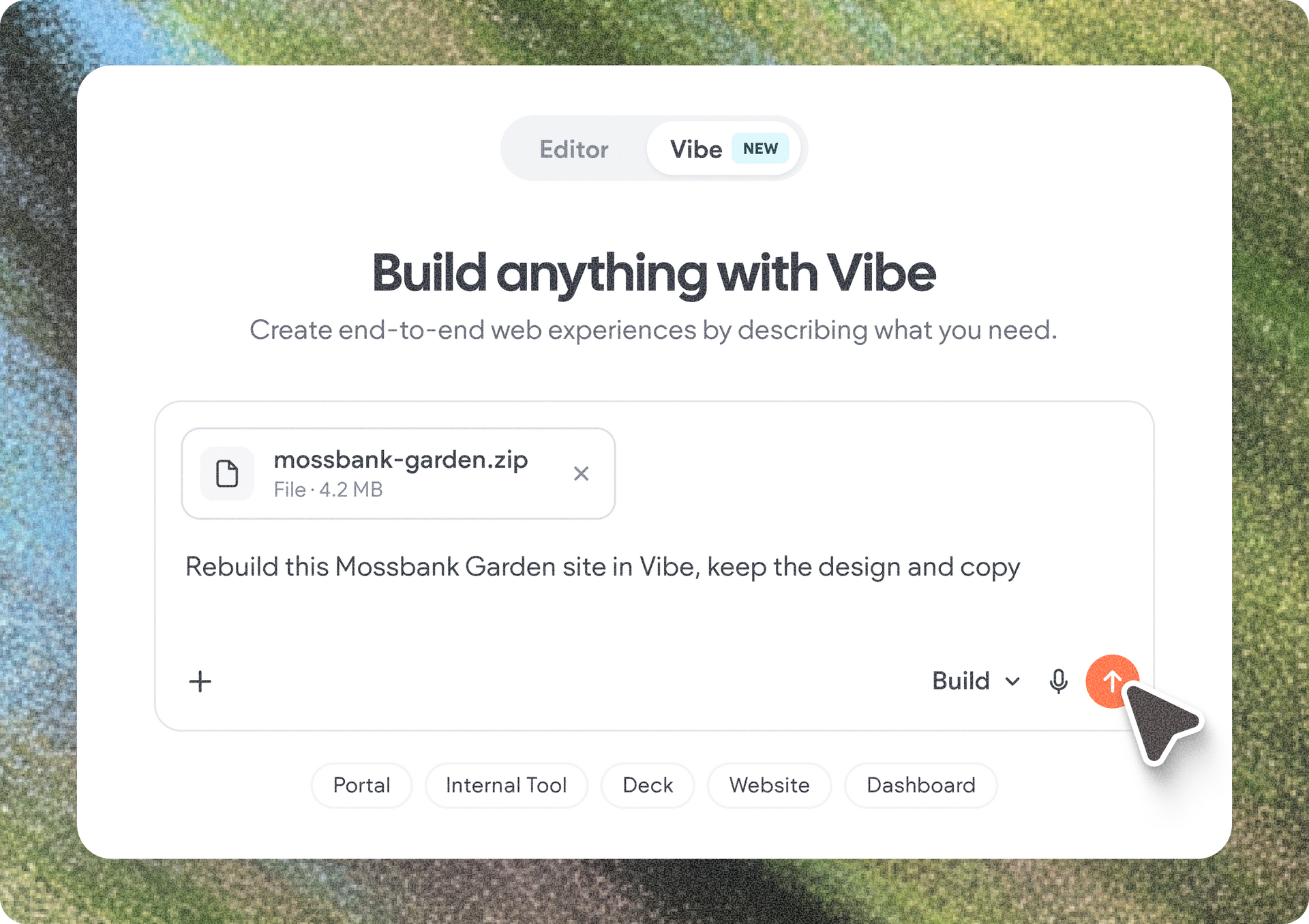
White “Build anything with Vibe” app screen with a dropdown, plus icon, and cursor clicking the orange button.
By Annat Katz • November 5, 2026
We’ve updated Copilot, Duda Vibe, and the native store to make site building easier and give you more control.